The Master Guide
Everything you need to transform your Discord server into an organized, informed community with PinPal.
How It Works (Crucial)
Understanding how PinPal "sticks" is the key to using it effectively. Unlike pins that are hidden in a menu, PinPal is reactive.
The Trigger Mechanism
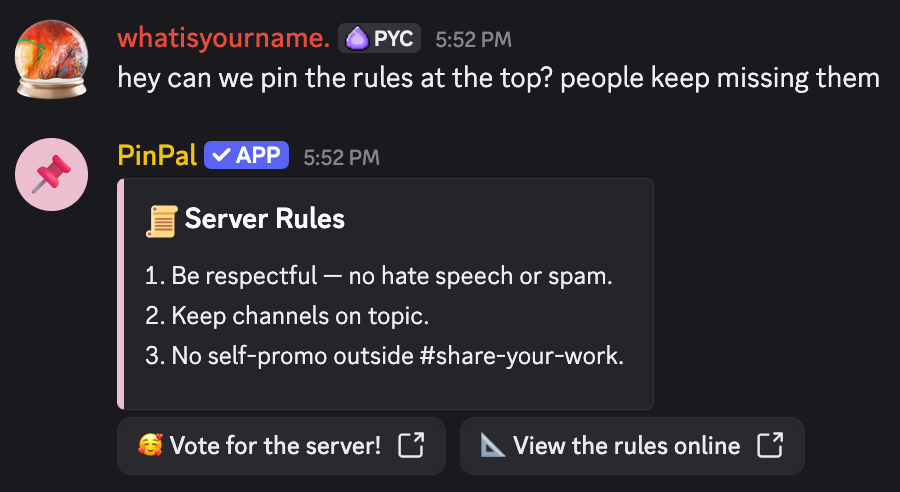
PinPal doesn't just sit at the bottom; it waits for a message. When a user sends a message in a channel with an active pin, PinPal will instantly delete its previous sticky and repost it at the absolute bottom.
If you've set up a pin and it isn't appearing yet, simply send a message in that channel. The bot will respond immediately by sticking your content below yours.
Quick Start
Ready to stick your first message? Follow these three simple steps:
Invite
Add PinPal to your server via Top.gg or our invite link.
Setup
Type /setup and select "Create New Pin".
Activate
Send a message in the channel to trigger the bot!
Video Walkthrough
/setup — Your Control Center
The /setup command is the heart of PinPal. It replaces complex dashboards with a native, visual interface inside Discord.
Creating a New Pin
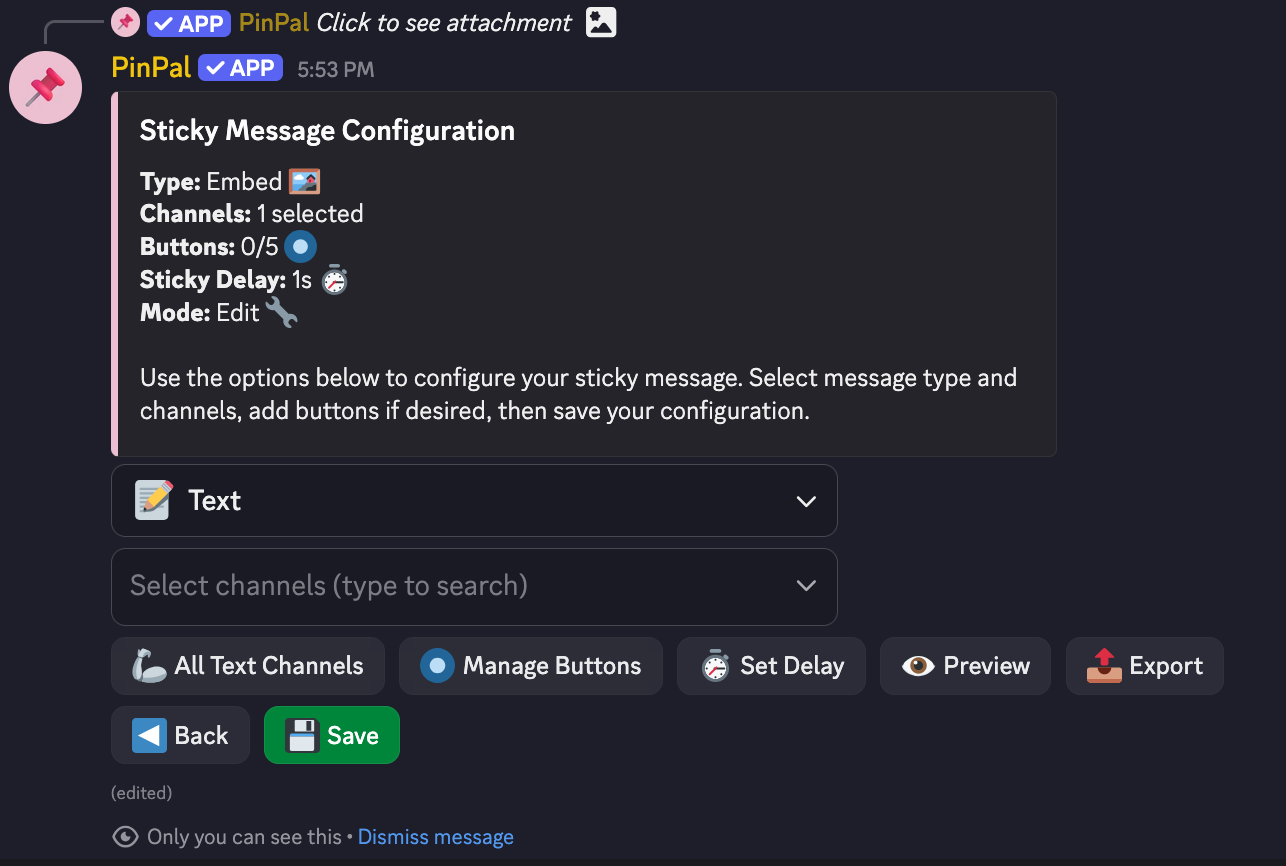
Once you run /setup, click the "Create a New Pin" button. You'll be prompted to select a channel. After selecting, the configuration panel opens.
Managing Existing Pins
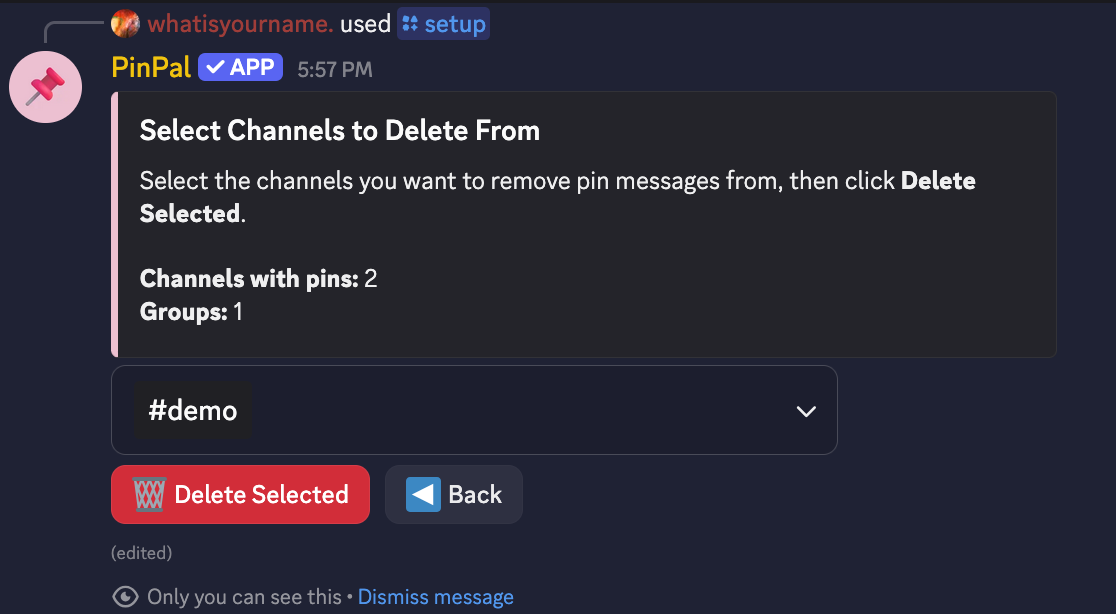
Need to change a rule or update an announcement? Run /setup again. The bot will show you a list of your active pins. Click "Edit A Pin" on any pin to modify its content, delay, or settings. "Delete Pins" and "List Pins" are great tools for managing existing Pins also.
/debug — Solve Issues Fast
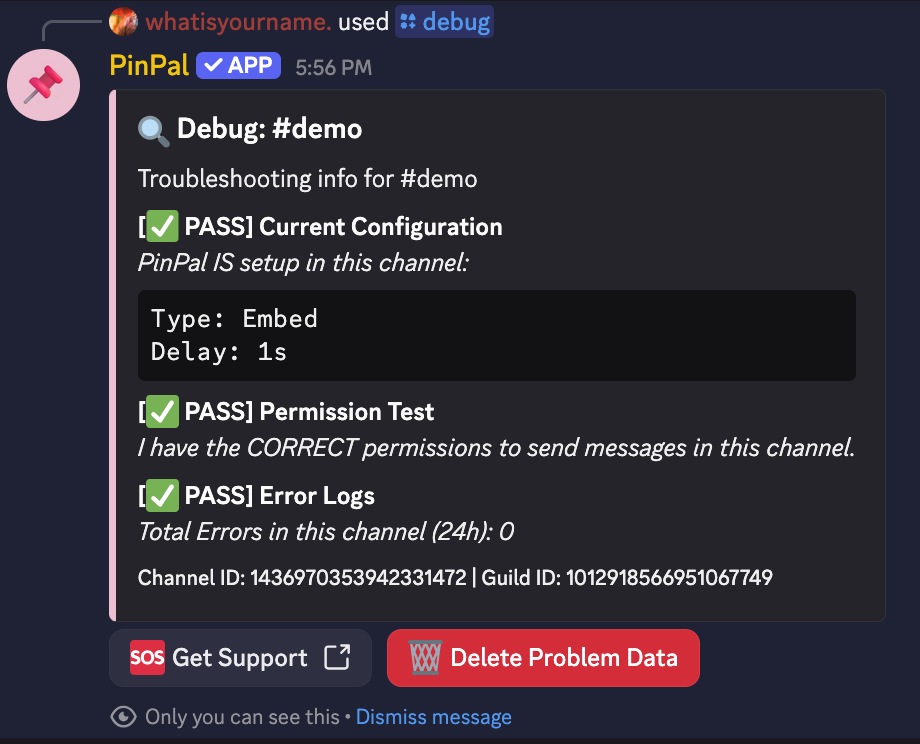
Something not working? Before contacting support, run /debug. This command performs an exhaustive check of your server's configuration.
What it checks:
- Permissions: Does the bot have "View Channel" and "Send Messages"?
- Rate Limits: Is the bot being throttled by Discord?
- Overrides: Are there channel-specific settings blocking the bot?
- Database: Is your pin correctly saved in our system?
Text vs Rich Embeds
PinPal supports two types of messages to suit your server's style.
Simple Text
Clean, standard Discord messages. Supports Markdown, Emojis, and Mentions. Best for quick reminders or simple rules.
Rich Embeds
Professional, styled boxes with titles, descriptions, footers, and side colors. Perfect for welcome messages and official announcements.
Global Sticky Mode
Manage announcements across dozens of channels simultaneously. By clicking "All Text Channels" in the create pin panel, you can pin to the entire server or by selecting multiple from the channel for a single sticky message.
After pinning globally, sticky messages are treated on an individual basis meaning editing a global pin will edit in that channel only. To edit the whole servers pin, you need to remove it first.
Presets & Templates
Presets let you reuse common sticky message setups without rebuilding them every time. They’re designed for servers that repeat the same announcements, rules, or onboarding messages.
Why presets exist
Most servers end up reusing the same layouts — welcome messages, rules, or support info. Instead of copying messages manually, PinPal lets you save them as reusable templates.
How to use presets
Inside /setup, select Import A Pin when creating a new sticky.
You can then choose from saved presets or import from a share code.
Important note
Presets are optional — you can still fully use PinPal without them. They’re just a shortcut for servers that want consistency across multiple channels.
Required Permissions
For PinPal to function, it needs the following permissions in the channels where it will post:
Note: Manage Messages is required to delete the old sticky before reposting, keeping your chat clean.
FAQ
Why isn't my sticky message appearing?
PinPal is reactive! It only posts after a message is sent in the channel. Try sending a message yourself to trigger the bot. If it still doesn't work, run /debug.
Is there a limit on how many stickies I can have?
No. Unlike other bots, PinPal offers unlimited sticky messages for free servers. You can stick a message in every single channel if you want.
Can I use custom emojis in my stickies?
Yes! Just paste the emoji ID or the standard emoji into the text or embed builder.
How do I stop a sticky message?
Run /setup, find the pin in the list, and click "Delete". The bot will remove its message and stop monitoring that channel.
Still Stale?
Our support team is active 24/7. If you've read the guide and run the debugger but still need a hand, join our community.
Join Our Support Server